
Silk Mobile
Table of Contents (Homepage)
- Overview
- Setting Up
- Getting Started
- How To
- Connecting Devices And Emulators
- Preparing Applications For Testing
- Managing Applications
- Recording Tests
- Working With Test Commands
- Adding Commands To Your Scripts
- Object Commands
- Click
- ClickCoordinate
- ClickIn
- ClickOffset
- Drag
- ElementGetProperty
- ElementGetTableRowsCount
- ElementListPick
- ElementListSelect
- ElementListVisible
- ElementScrollToTableRow
- ElementSendText
- ElementSetProperty
- ElementSwipe
- ElementSwipeWhileNotFound
- GetAllValues
- GetElementCount
- GetElementCountIn
- GetTextIn
- IsElementBlank
- IsElementFound
- IsFoundIn
- LongClick
- RunNativeAPICall
- SendWhileNotFound
- VerifyElementFound
- VerifyElementNotFound
- VerifyIn
- WaitForElement
- WaitForElementToVanish
- GetCoordinateColor
- DragDrop
- Application Commands
- Device Commands
- Web (Hybrid) Specific Commands
- Utilities Commands
- Monitoring Commands
- Configuration Commands
- ExtractLanguageFiles
- SetDefaultClickDownTime
- SetDefaultTimeOut
- SetDefaultWebView
- SetDragStartDelay
- SetInKeyDelay
- SetKeyToKeyDelay
- SetLanguage
- SetLanguagePropertiesFile
- SetShowImageInReport
- SetShowPassImageInReport
- SetShowReport
- SetSpeed
- SetThrowExceptionOnFail
- SetWebAutoScroll
- StartStepsGroup
- StopStepsGroup
- TextFilter
- Miscellaneous Commands
- Controlling Element Identification Rules
- Editing Test Objects
- Executing Test Scripts
- Report Of Executed Test
- Working From Code Environment
- Continuous Integration
- Layout Verification Tests
- Use Device Vitals Monitors
- Troubleshooting
- Terminology
Landscape & Portrait
Description
You can toggle orientation on the device's reflection by using the key events for Landscape/Portrait.
Note: Android version must be 4.2 or above when using non-instrumented applications.
Usage
Scenario: In the following example We will toggle orientation on an android device to landscape mode by sending the text '{Landscape}'.
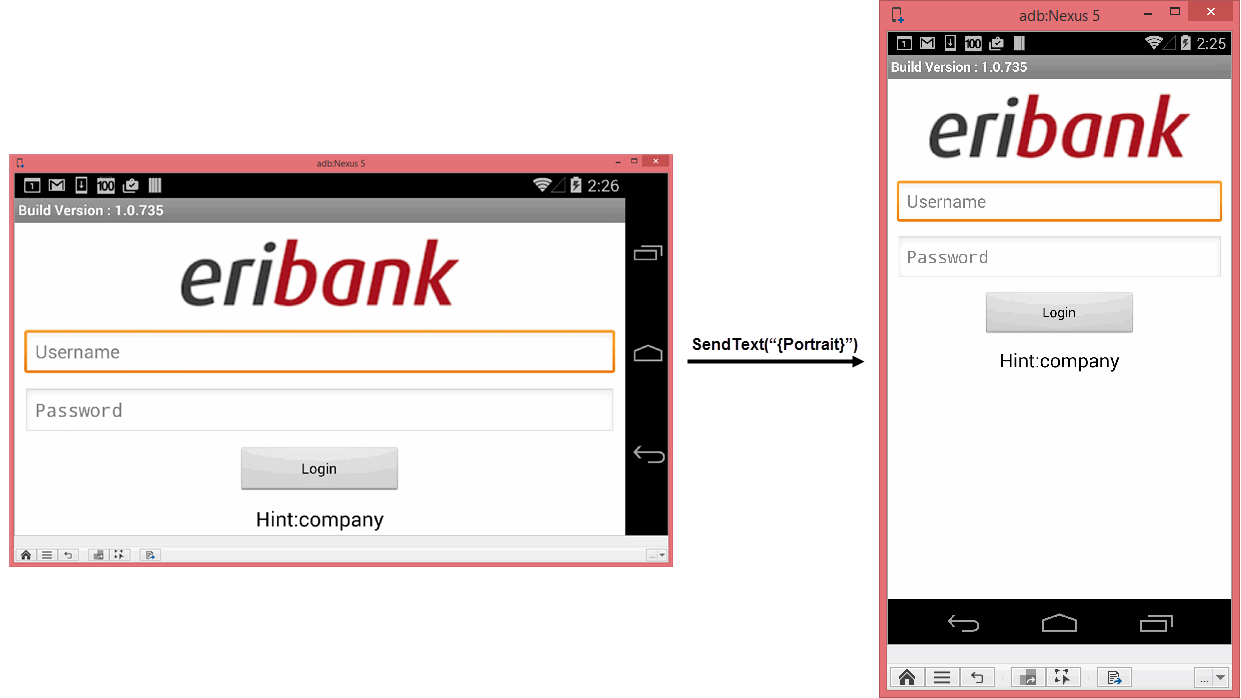
Afterwards we will toggle orientation back to portrait by using the key evento of '{Portrait}'.
Step 1: sendText("{LandScape}")
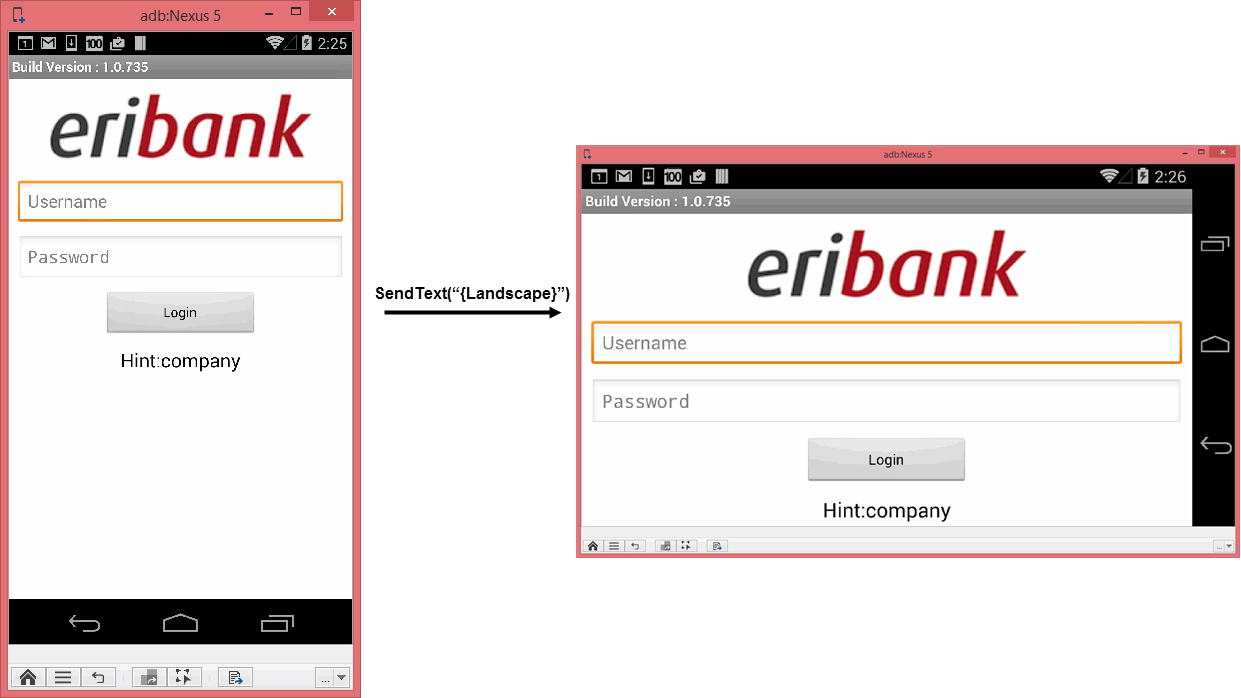
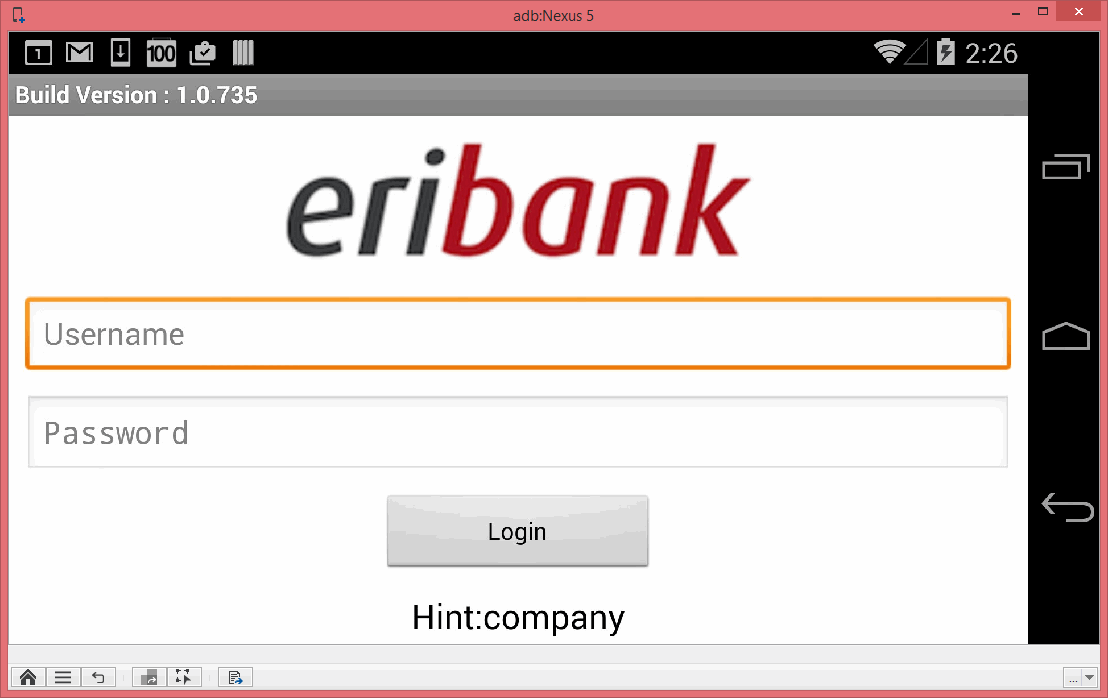
Step 2: Orientation is now landscape on the real physical device:
Step 3: sendText("{Portrait}")
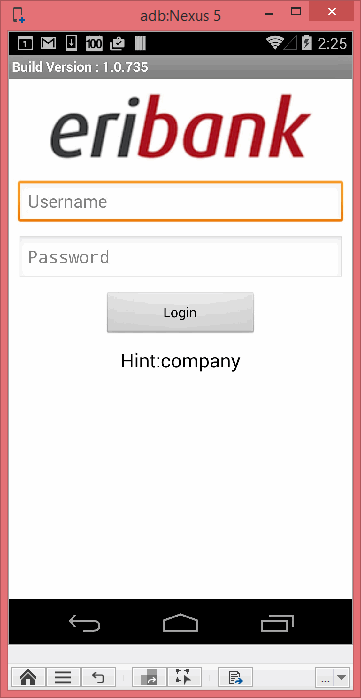
Step 4: Rotate the real physical device back to portrait mode:
Advanced configuration:
Some devices will require advanced configuration in order to toggle orientation properly.
-
For landscape orientation use: {LANDSCAPE_0}, {LANDSCAPE_90}, {LANDSCAPE_180}, {LANDSCAPE_270} to control the orientation and its direction
-
For portrait orientation use: {PORTRAIT_0}, {PORTRAIT_90}, {PORTRAIT_180}, {PORTRAIT_270}
For example:
-
{LANDSCAPE_90} is actually {PORTRAIT_0}
-
{PORTRAIT_180} is actually the device upside down
Code Examples
client.sendText("{Landscape}");client.sendText("{Landscape}");client.sendText "{Landscape}"Reportself.client.sendText("{Landscape}")$client->sendText("{Landscape}");